
AI photo editing
Photo editor AI
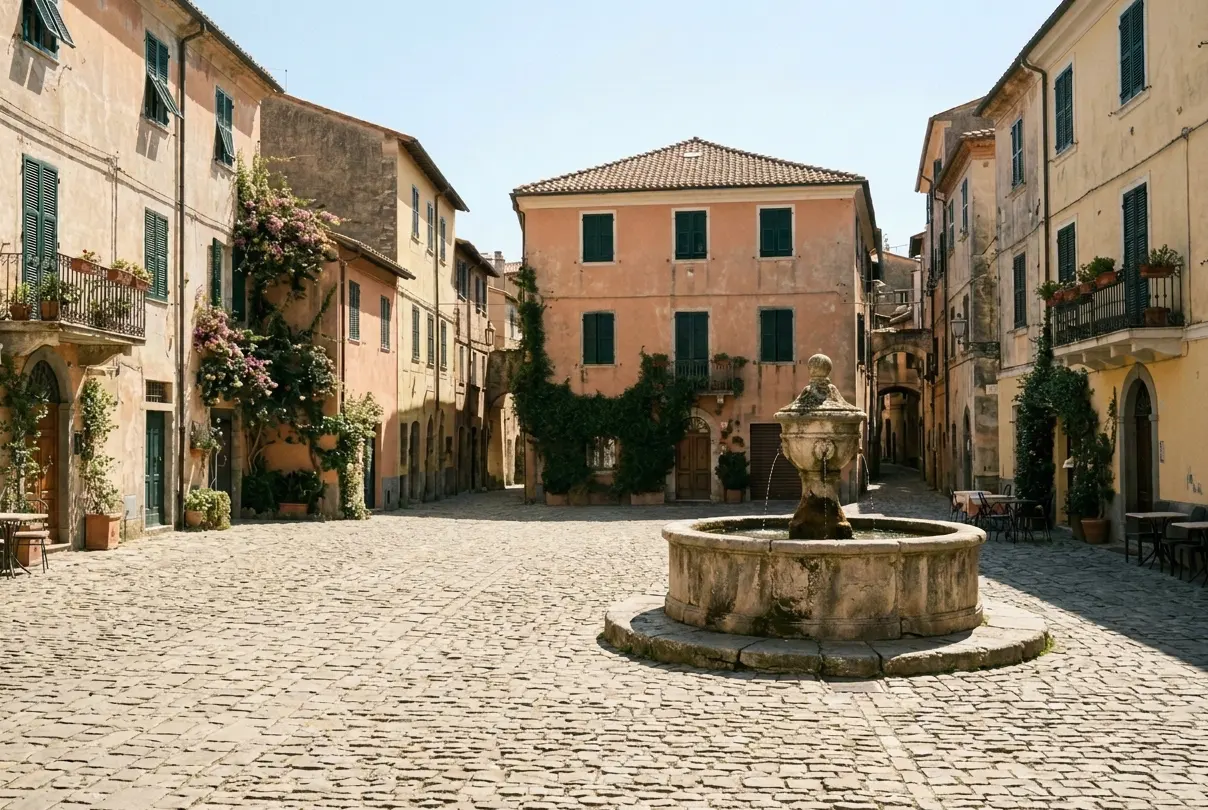
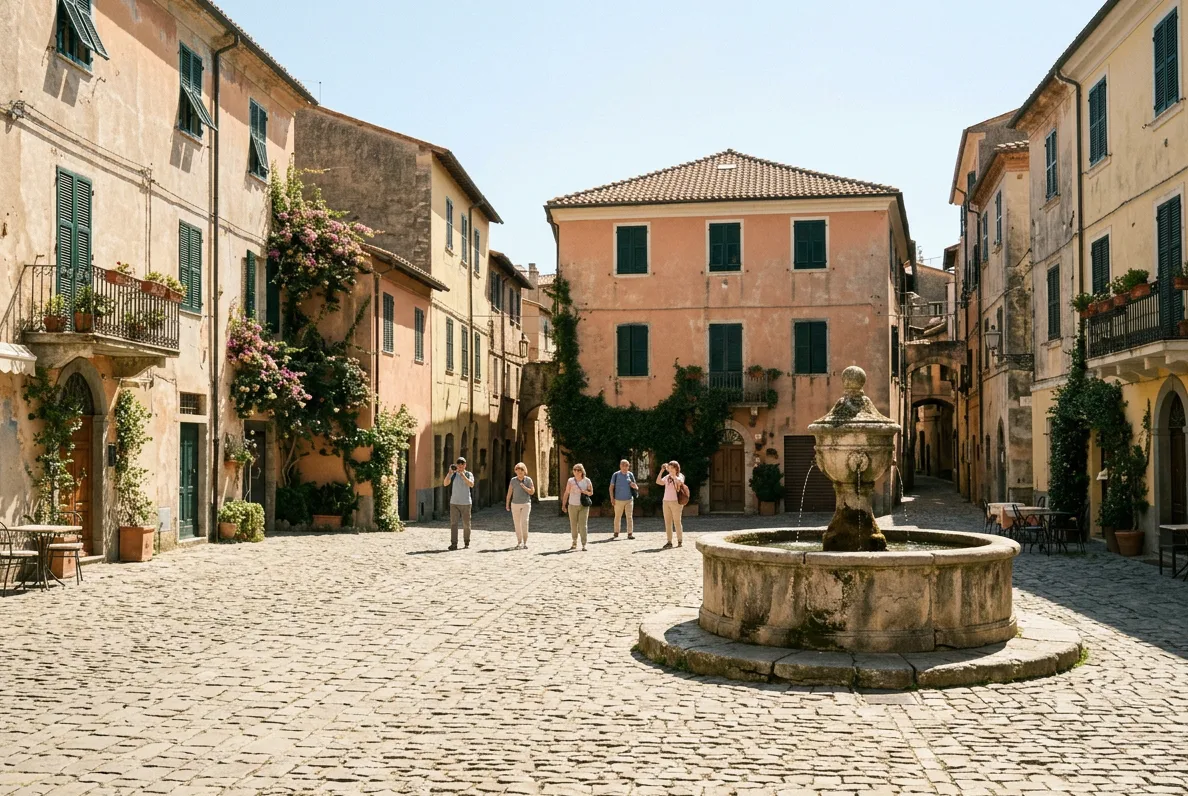
Upload a photo and type what should change: remove the tourists, swap the background, repair an old print, warm up the light. You see the credit price before anything runs, and every result can be edited again.
- Remove people
- New background
- Restore old photo
- Golden hour
Quick edits
- This edit costs
- 11 credits
Your free credits cover one complete edit (11 credits). A cut-out costs 6 credits.
Quick edits
Common fixes, one tap away
Each chip fills in a tested instruction. Add your own words to steer it, or skip the chips and describe any change.
Remove people
Clear passers-by and crowds out of travel and street photos.
New background
Put the subject somewhere else, with light that matches.
Read the guideRestore old photo
Mend scratches, creases, stains and fading on scanned prints.
Read the guideColorize
Give black-and-white photos natural, believable colour.
Golden hour
Turn flat daylight into warm, low evening sun.
Remove an object
Name a cone, a bin or a power line and it is painted out.
Read the guideReplace the sky
Swap a dull grey sky and relight the scene to match.
Clean product shot
Tidy clutter, dust and smudges around a product.
Cut out
A transparent PNG of the main subject, for listings and slides.
Before and after
Real results from this editor
Unretouched outputs on AI-generated sample photos. The exact instruction is listed under each one.
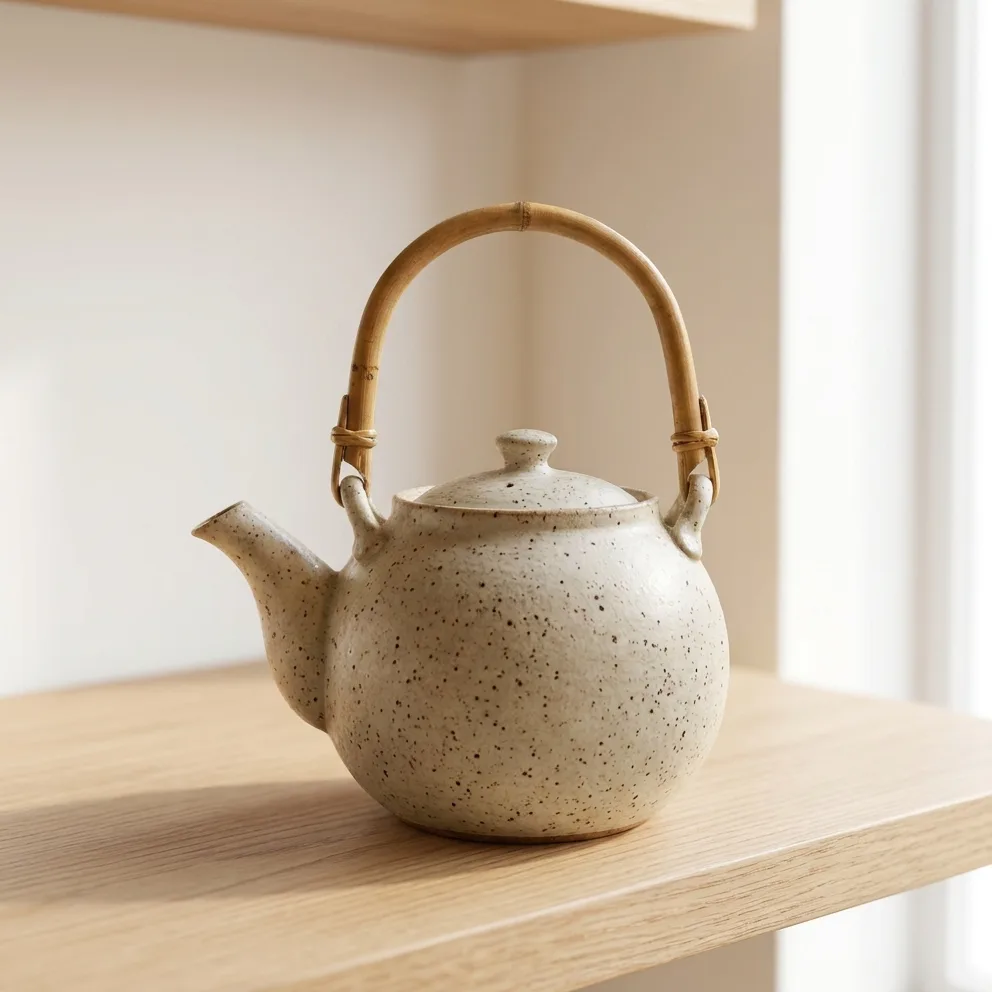
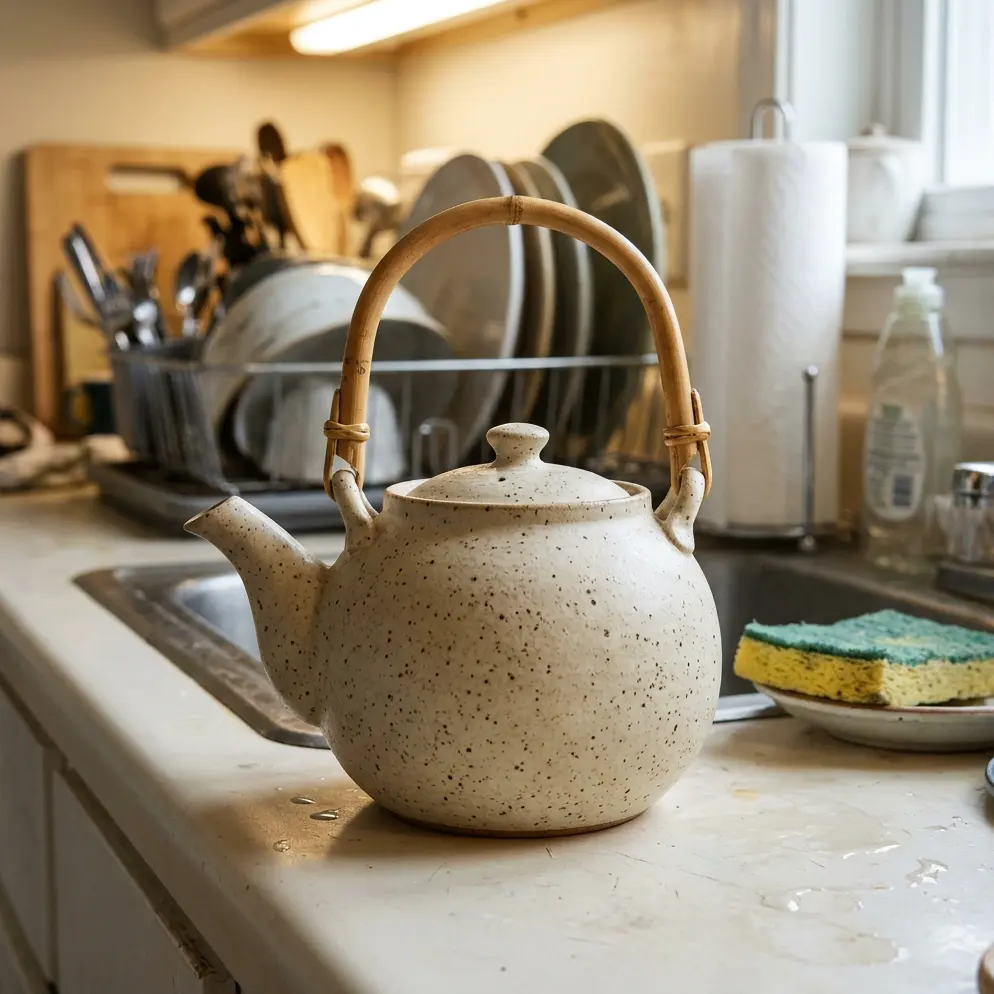 BeforeAfter
New background · New background: a bright minimal studio with a light oak shelf
Instruction
Replace the background of this photo with a bright minimal studio with a light oak shelf and soft window light. Keep the main subject exactly as it is, with clean natural edges, and match the new background's light, colour and perspective to the subject. Keep every person, face, body, pose, object and the composition exactly as they are unless this instruction changes them. Add no text, borders or watermarks.
 BeforeAfter
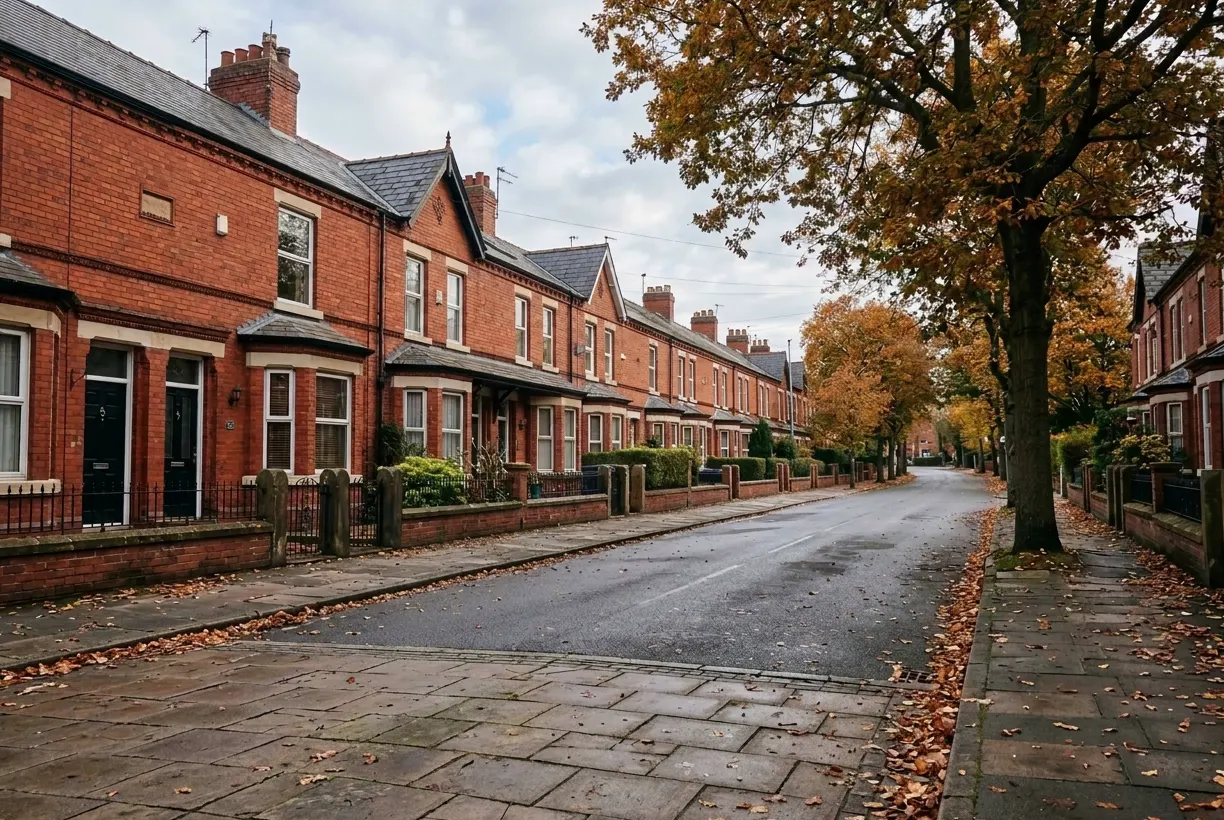
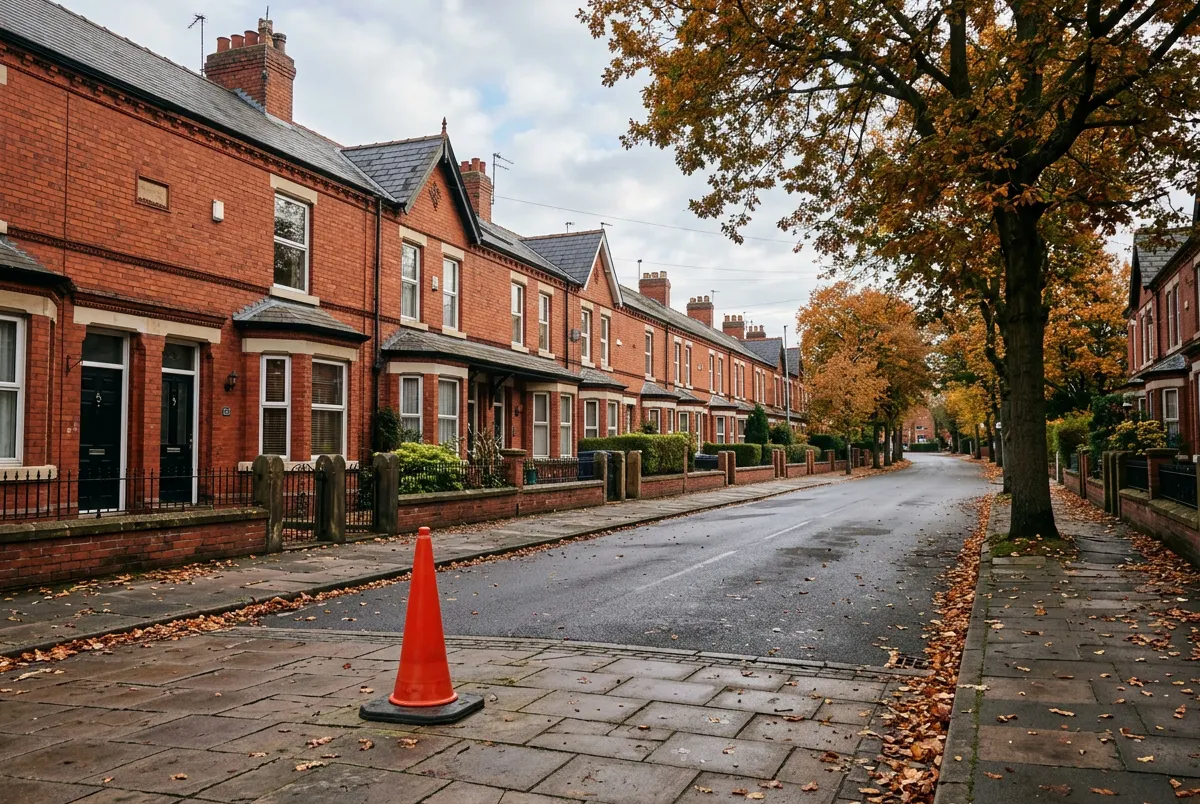
Remove an object · Remove an object: the orange traffic cone on the pavement
Instruction
Remove the orange traffic cone on the pavement from this photo and fill the area with what would naturally be behind it, matching the surrounding texture, light and perspective. Leave no trace or blur. Keep every person, face, body, pose, object and the composition exactly as they are unless this instruction changes them. Add no text, borders or watermarks.
 BeforeAfter
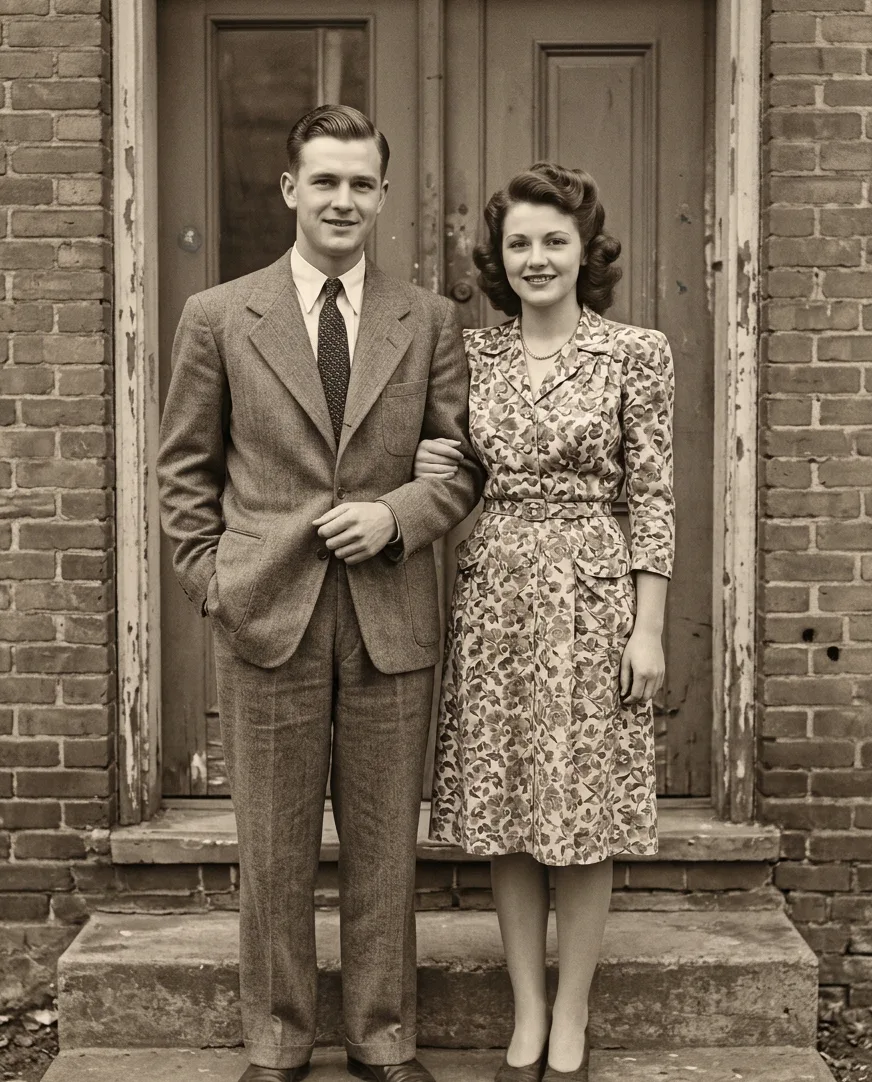
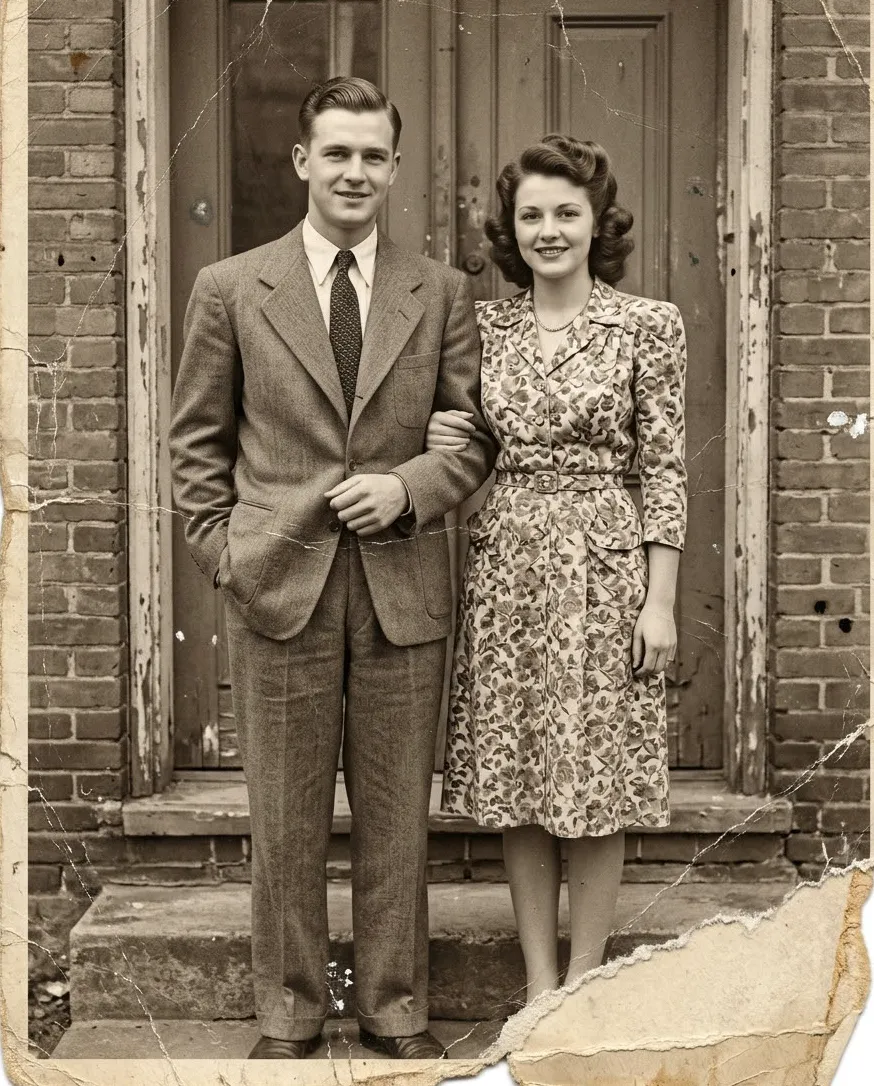
Restore old photo · Restore old photo
Instruction
Restore this old photograph: repair scratches, tears, dust, stains and fading, recover lost contrast and gently sharpen detail. Keep every face, expression, pose and the original composition faithful; do not invent new details. Keep every person, face, body, pose, object and the composition exactly as they are unless this instruction changes them. Add no text, borders or watermarks.
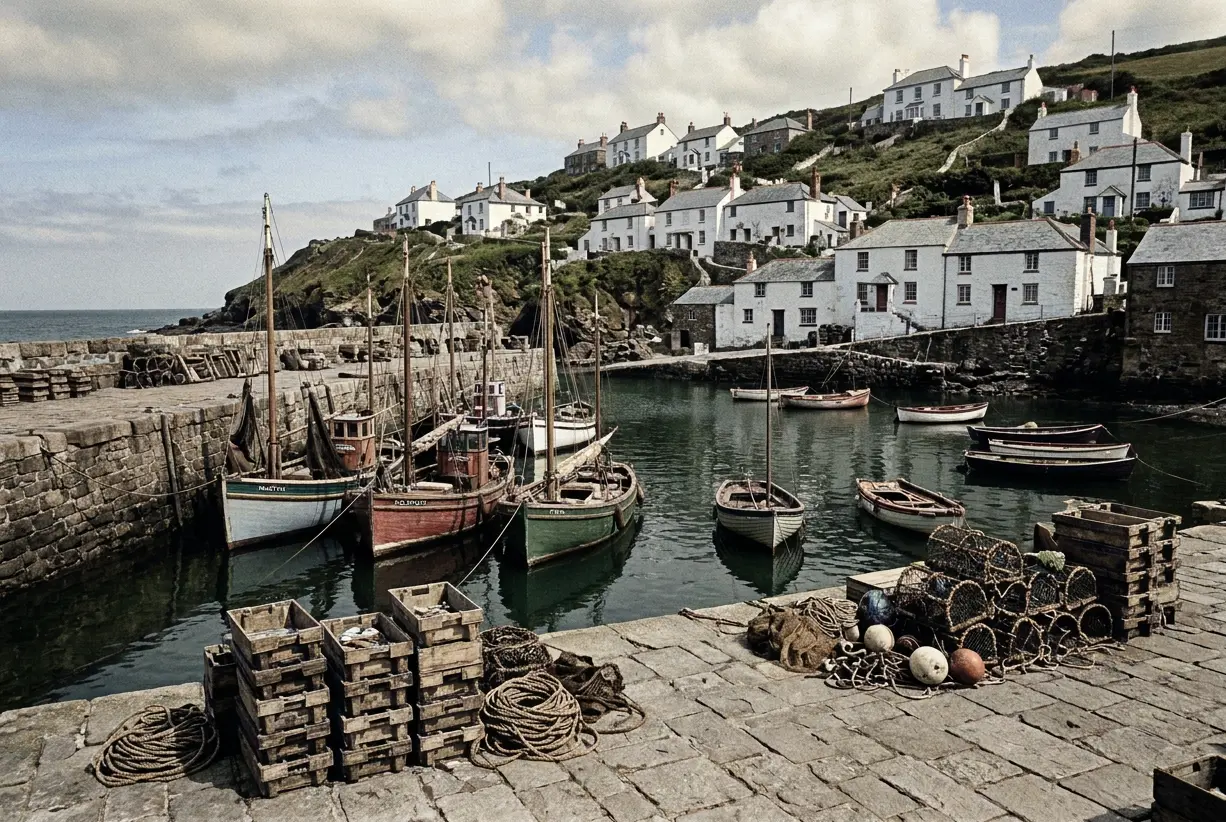
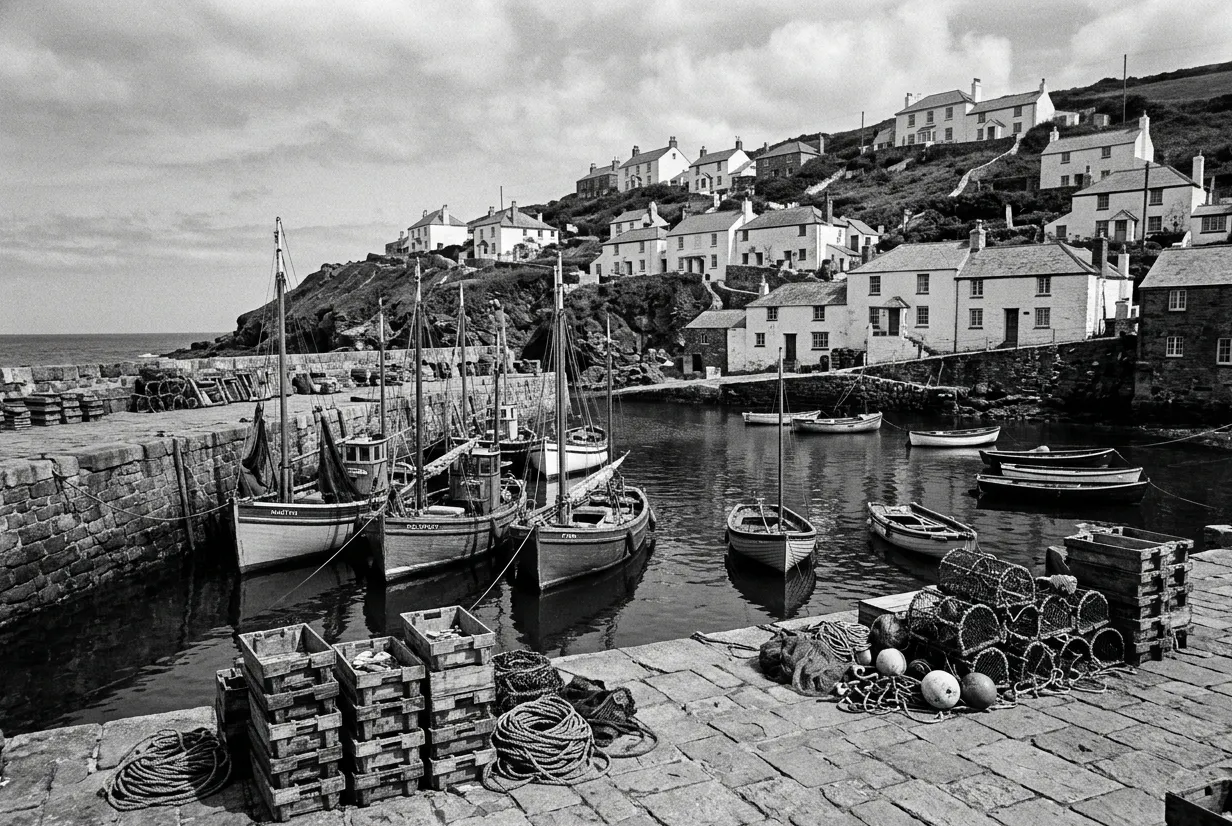 BeforeAfter
Colorize · Colorize
Instruction
Colourise this black-and-white photograph with natural, period-appropriate colours and realistic skin tones. Keep every face, detail and the composition exactly as they are. Keep every person, face, body, pose, object and the composition exactly as they are unless this instruction changes them. Add no text, borders or watermarks.
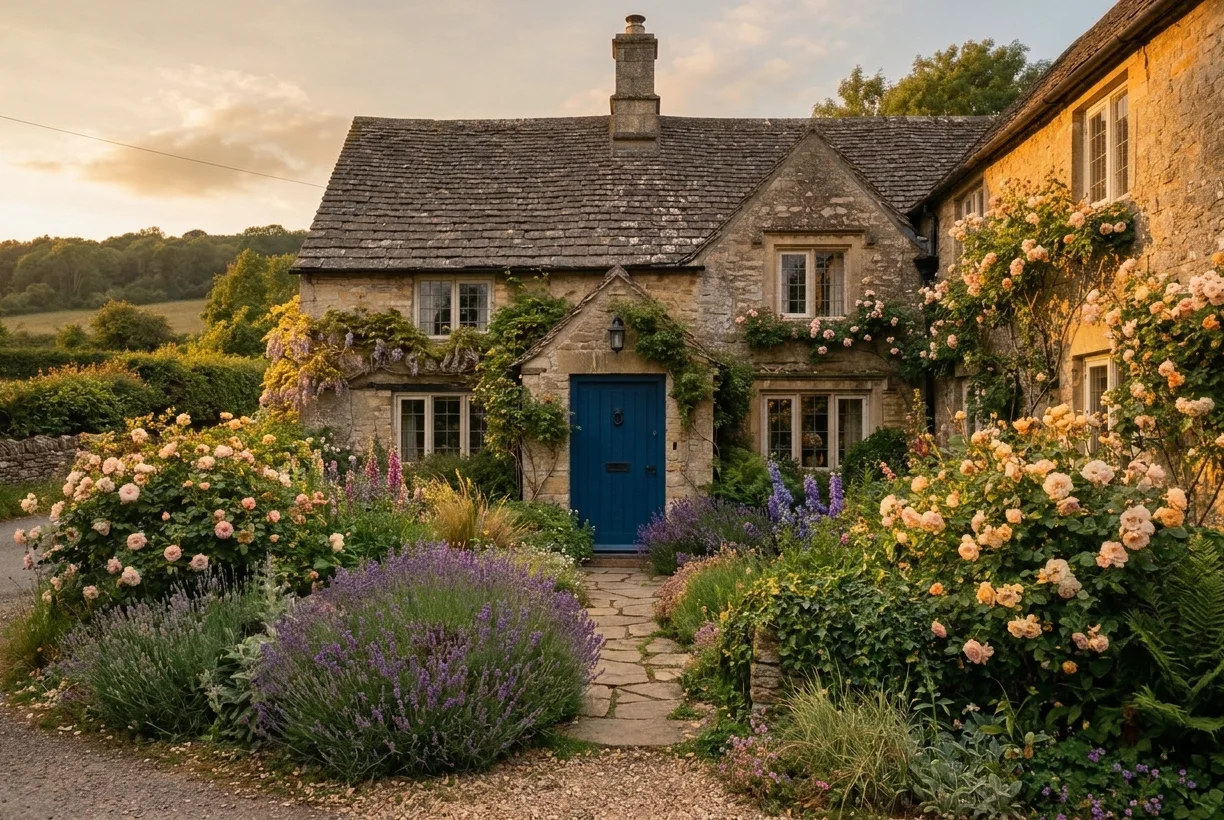
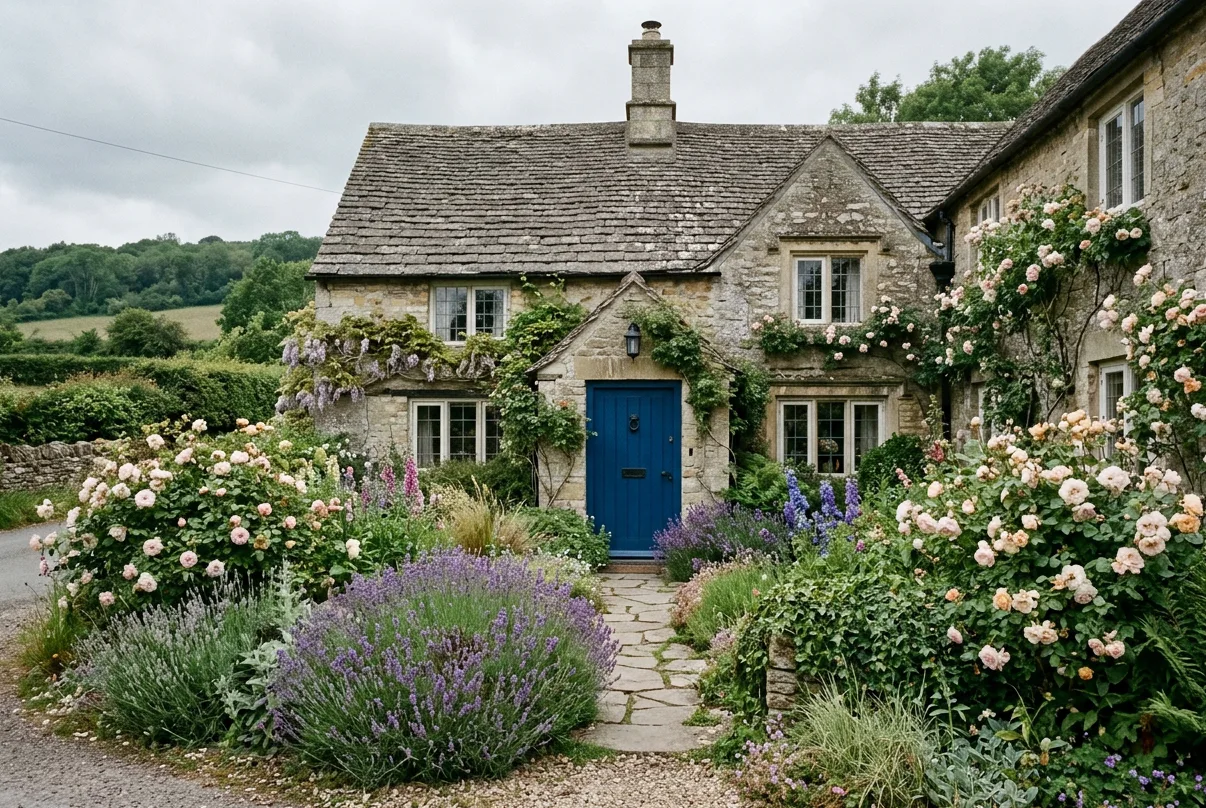 BeforeAfter
Golden hour · Golden hour
Instruction
Relight this photo as if it were taken at golden hour: warm, low sunlight from the side with long soft shadows and a gentle glow. Change only the light, shadows and colour temperature. Keep every person, face, body, pose, object and the composition exactly as they are unless this instruction changes them. Add no text, borders or watermarks.
 BeforeAfter
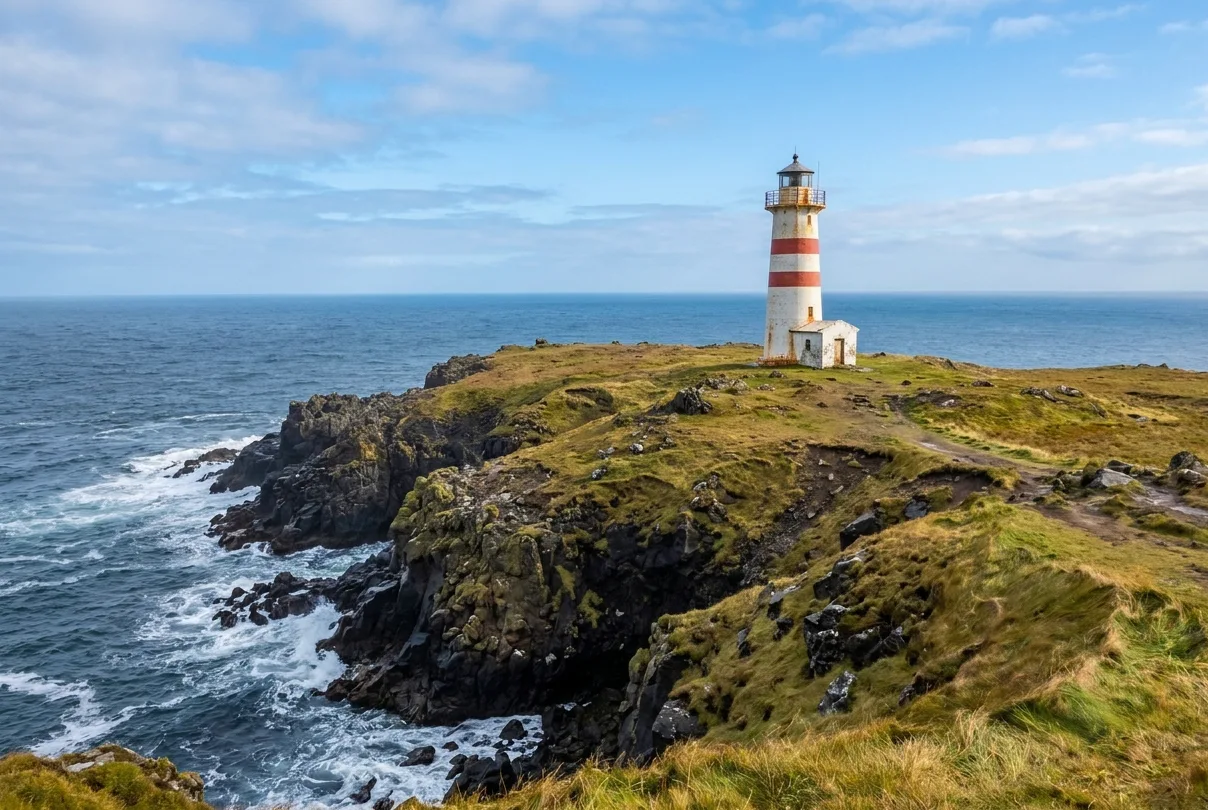
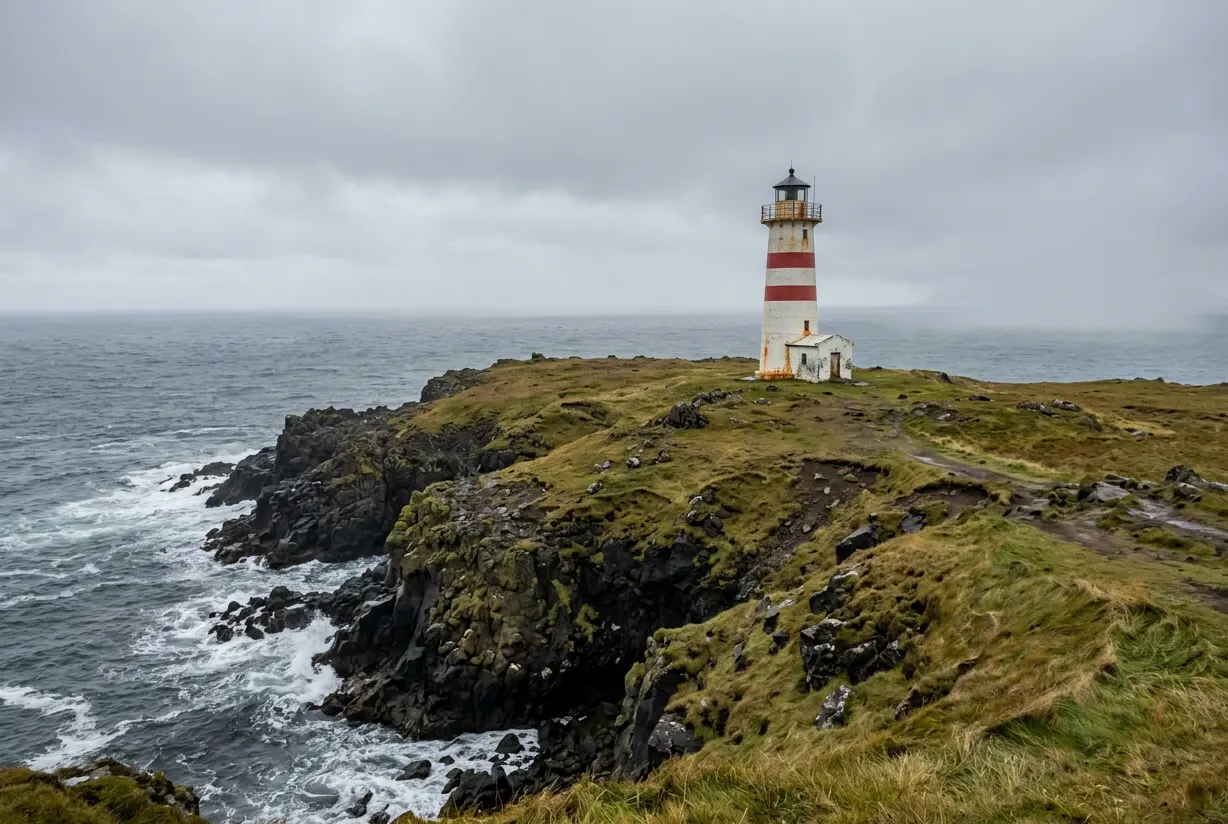
Replace the sky · Replace the sky: a clear blue sky with soft white clouds
Instruction
Replace the sky in this photo with a clear blue sky with soft white clouds, and adjust the light on the scene so it matches the new sky. Change nothing else. Keep every person, face, body, pose, object and the composition exactly as they are unless this instruction changes them. Add no text, borders or watermarks.
 BeforeAfter
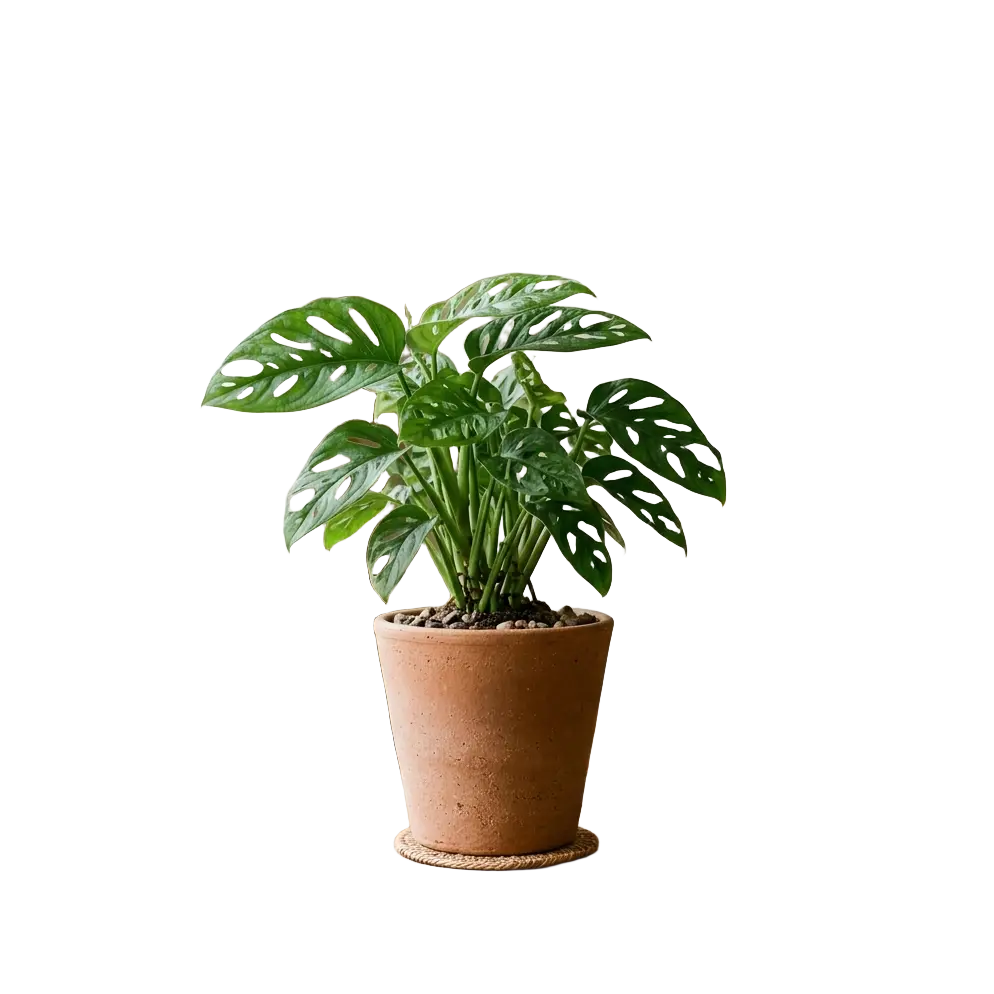
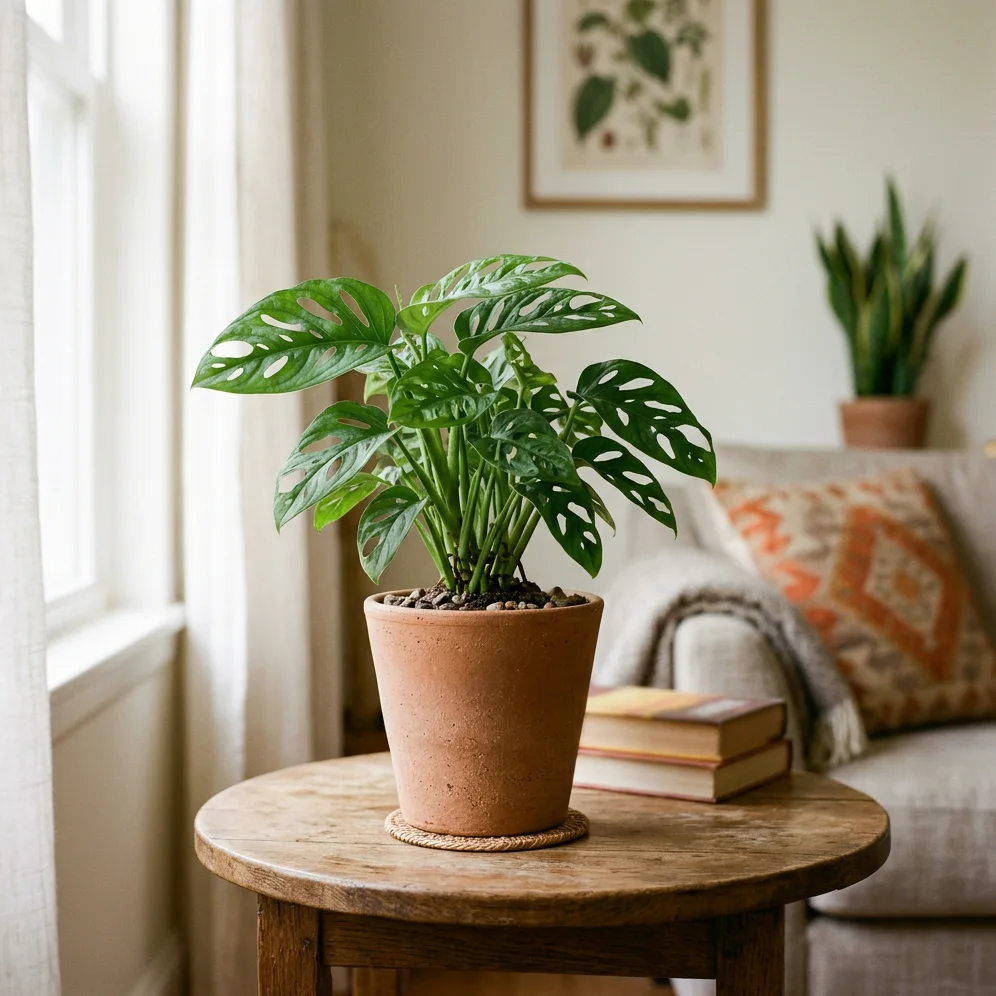
Cut out · Cut out
How it works
How to edit a photo with AI
Three steps, whatever the change.
- 01
Upload a photo
JPG, PNG or WebP up to 10 MB. It is stored privately in your account.
- 02
Say what should change
Type it in your own words or tap a quick edit, then pick a model and output size. The credit price updates as you go.
- 03
Compare and keep going
Drag the slider to compare, download, or keep editing the result. Every version stays in the strip under the photo.
Models
Which model runs your edit
You choose the model. Credits per edit are fixed by model and output size.
| Model | Good for | 1K | 2K | 4K |
|---|---|---|---|---|
| Nano Banana 2.1 | Everyday edits: fast, low cost, good at clean-ups | 11 | 16 | 24 |
| Nano Banana Pro | Busy scenes and restorations, 4K only | — | — | 63 |
| GPT Image 2 | Strong colour changes and a second opinion on hard edits | 16 | 27 | 42 |
| Recraft Remove Background | Cut-outs only; keeps the original pixels | 6 | — | — |
Output sizes above 1K need a plan or a credit pack. Credits are only kept for edits that finish.
Pricing
Plans for one editor or a whole desk
Two personal plans, two team plans with seats, and credit packs for occasional use. New accounts get 11 free credits once: one complete edit.
Retoucher
For regular fixes to your own photos
$9.33/month
$112 billed once a year
or $11.20 billed monthly
- 1,245 credits a month
- About 113 Nano Banana 2.1 edits at 1K
- 14,940 credits a year, 1,245 added each month
- Two edits at a time
- Up to 2K output
Lightbox
For shops, studios and heavy weekly editing
$22.67/month
$272 billed once a year
or $27.20 billed monthly
- 3,300 credits a month
- About 300 Nano Banana 2.1 edits at 1K
- 39,600 credits a year, 3,300 added each month
- Five edits at a time
- Up to 4K output
- API keys and MCP for scripts
Team plans
Billed per seat, from 3 seats. Every seat adds credits to one shared pool, and members join by invite link.
Retouch Desk
A shared pool for a small team that edits every week
$242per seat a year
or $24.20 per seat billed monthly
3 seats: $726 in total
- 8,550 credits a month in the pool (2,850 per seat)
- One shared credit pool for the team
- Five edits at a time
- Up to 4K output
- API keys and MCP for scripts
Press Room
More credits per seat, plus a credit cap you set per member
$522per seat a year
or $52.20 per seat billed monthly
3 seats: $1,566 in total
- 19,260 credits a month in the pool (6,420 per seat)
- One shared credit pool for the team
- Five edits at a time
- Up to 4K output
- API keys and MCP for scripts
Touch-up · $7.40
710 credits that never expire, about 64 edits at 1K. Unlocks 2K output.
Photo Shoot · $19.60
1,870 credits that never expire, about 170 edits at 1K. Unlocks 2K output.
Free: 11 credits once, added when you confirm your email, no card needed. That is one complete edit. One grant per mailbox. They never expire.
Refunds within 7 days (monthly), 21 days (yearly) or 14 days (credit packs) if no more than 10% of the credits were used; the unused part comes back pro rata.
Questions about the AI photo editor
What is PhotoEditAI?
PhotoEditAI is a photo editor AI that runs in the browser. You upload a photo and describe the change in words, such as "remove the people behind me" or "make it golden hour", and an image model makes the edit. Quick edits cover the common jobs, and a separate mode cuts the subject out onto a transparent background.
Is the AI photo editor free?
New accounts get 11 credits once, added when the email address is confirmed; that covers one complete edit at 1K (11 credits). Each mailbox gets the grant once, and sign-ups from VPN, proxy or hosting networks do not get it. After that you need a plan or a credit pack. There are no daily or monthly free credits.
Which AI models does it use?
Edits run on Nano Banana 2.1, Nano Banana Pro or GPT Image 2; you pick one in the editor. Cut-outs run on Recraft Remove Background, a dedicated model that keeps your original pixels. The model name is saved with every result.
Do I have to select or mask anything?
No. You name the thing in words, such as "the orange cone on the left", and the model finds it. Be specific when two similar things are in the photo.
What photos can I upload?
JPG, PNG or WebP files up to 10 MB and at least 64 pixels on each side. Upload only photos you own or have permission to edit, and only photos of people who agreed to it.
How large are the results?
Cut-outs keep the size of your upload. Edits come out at 1K without a plan, up to 2K with Retoucher or a credit pack, and up to 4K with Lightbox or a team plan. Nano Banana Pro always renders at 4K.
Who can see my photos and results?
Only you, and on a team plan the owner sees usage, not your photos. There is no public gallery. The photo goes only to the AI service that runs the edit, and the words you type are checked by an automated safety screen first. Details are in the Privacy Policy.
What happens if an edit fails?
Credits are taken when an edit starts. If it errors or times out, they go back to your balance automatically and the job is marked as failed in My edits.
Can I use the edited photos commercially?
Yes, on any plan, as long as you hold the rights to the photo you uploaded and the use follows the Terms and the Acceptable Use Policy.
What will it refuse to do?
Removing watermarks or logos you do not own, swapping faces, undressing or sexualising anyone, changing a real person's body, deepfakes and impersonation, anything sexual involving minors, and edits meant to mislead, such as fake documents. Instructions are screened before each edit runs; see the Acceptable Use Policy.
Updated
Editing notes
Practical write-ups on clean-ups, backgrounds, restorations and choosing a model.
Background Change Without a Cut-out: When to Use Which
Two ways to change the background of a photo: a cut-out onto transparency, or an AI edit that repaints the scene and the light. When each one is the right call.
Prompts That Work for Removing People and Objects from Photos
How to word an AI edit that removes people, cones, wires and clutter from a photo, with before-and-after runs and the exact instructions used.
Restoring an Old Photo: What AI Fixes and What It Invents
AI old photo restoration repairs scratches, creases and fading well, but has to guess where the picture is missing. How to scan, restore, colorize and check the result.
Have a photo that needs one fix?
Upload it, say what should change, and compare the result.