Remove an object from a photo

To remove an object from a photo, upload it, tap Remove an object and name what should go, such as "the orange cone on the pavement". The AI finds it, paints it out and fills the gap with background that fits. There is no brush or mask: words do the selecting. Removing a person from a photo works the same way with Remove people.

Updated

Quick edits

This edit costs
11 credits
Sign up free: 11 credits

Your free credits cover one complete edit (11 credits). A cut-out costs 6 credits.

How it works

  1. 1

    Upload the photo

    JPG, PNG or WebP up to 10 MB. Larger originals give the fill more detail to match.

  2. 2

    Name what should go

    Tap Remove an object and describe it with its colour and position, e.g. "the black power lines across the sky". For people, tap Remove people and say who should stay, if anyone.

  3. 3

    Compare and repeat if needed

    Drag the slider to check the filled area. If something is left over, keep editing the result and name it again.

Good for

  • Tourists and passers-by in travel and street photos
  • Cones, bins, signs and parked clutter in property and architecture shots
  • Power lines and poles across a landscape sky
  • Stray cables, cups and clutter around a product or desk
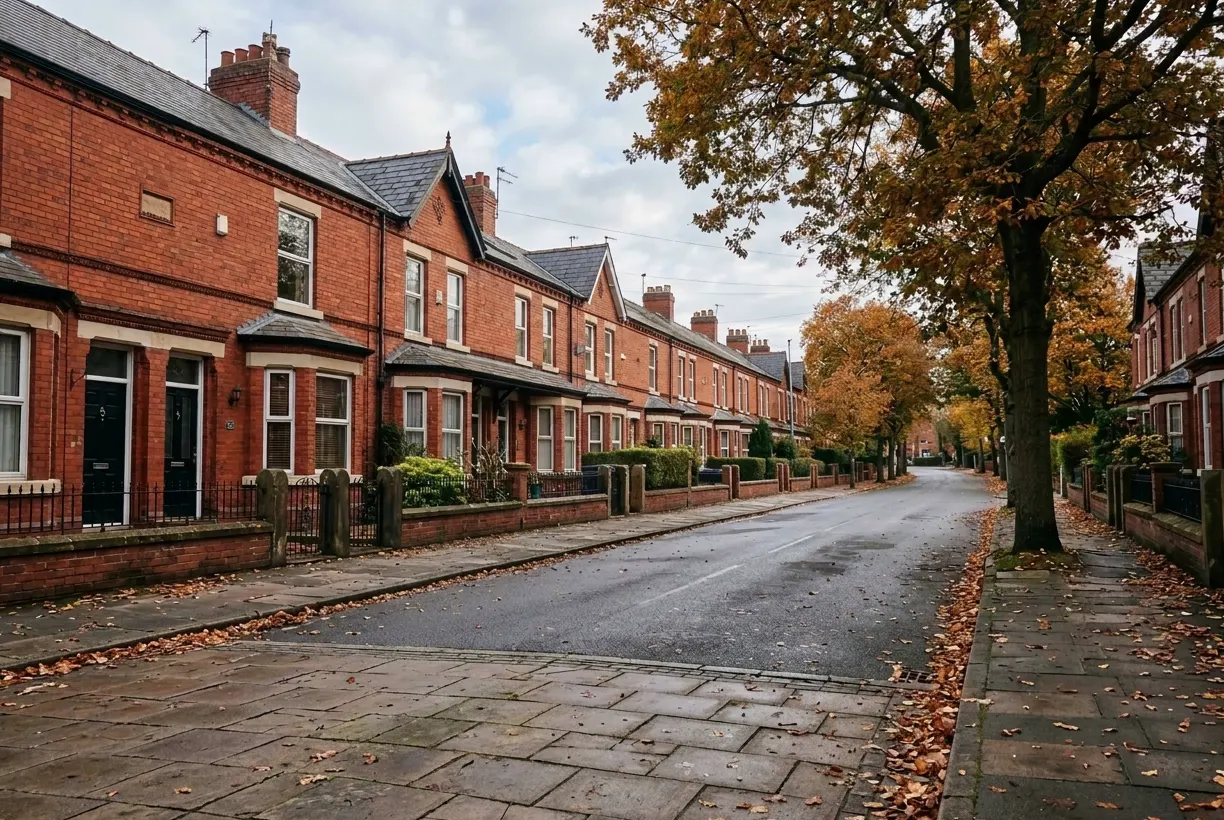
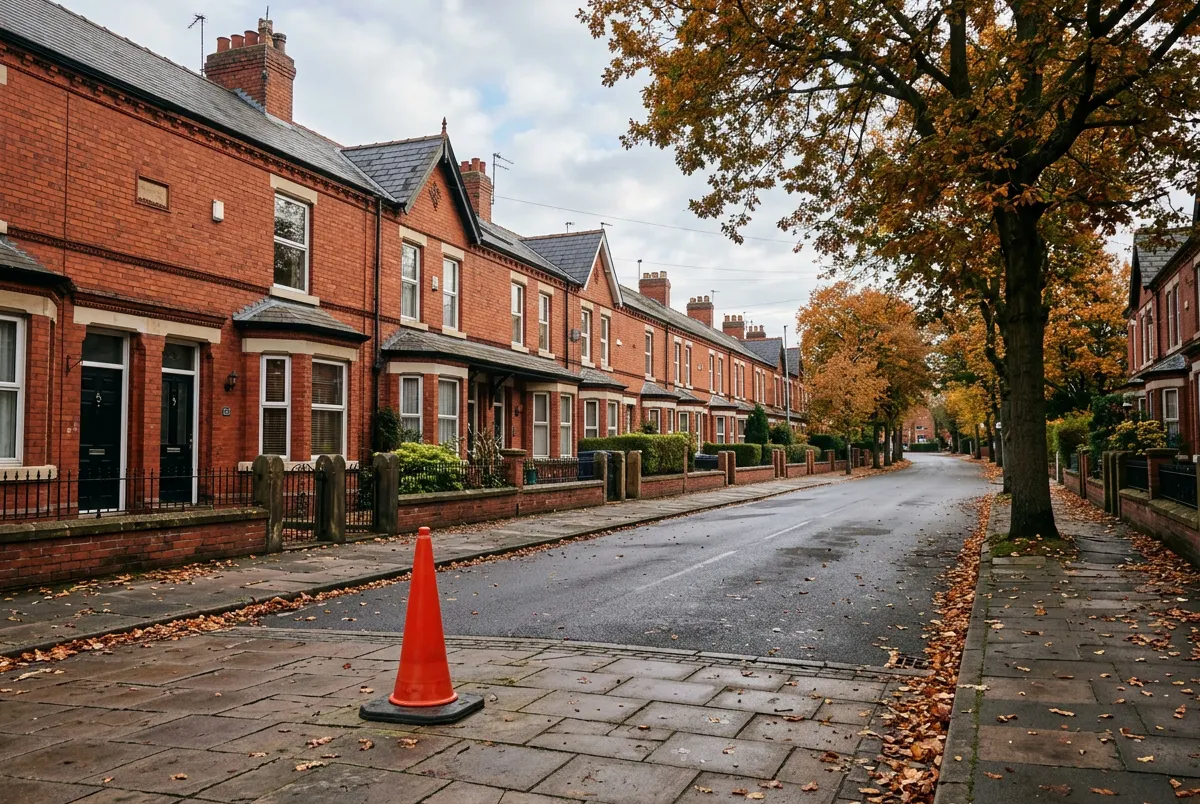
A brick terrace street with the traffic cone removed: AfterA brick terrace street with the traffic cone removed: BeforeBeforeAfter

Remove an object: the orange traffic cone on the pavement

Instruction: Remove the orange traffic cone on the pavement from this photo and fill the area with what would naturally be behind it, matching the surrounding texture, light and perspective. Leave no trace or blur. Keep every person, face, body, pose, object and the composition exactly as they are unless this instruction changes them. Add no text, borders or watermarks.

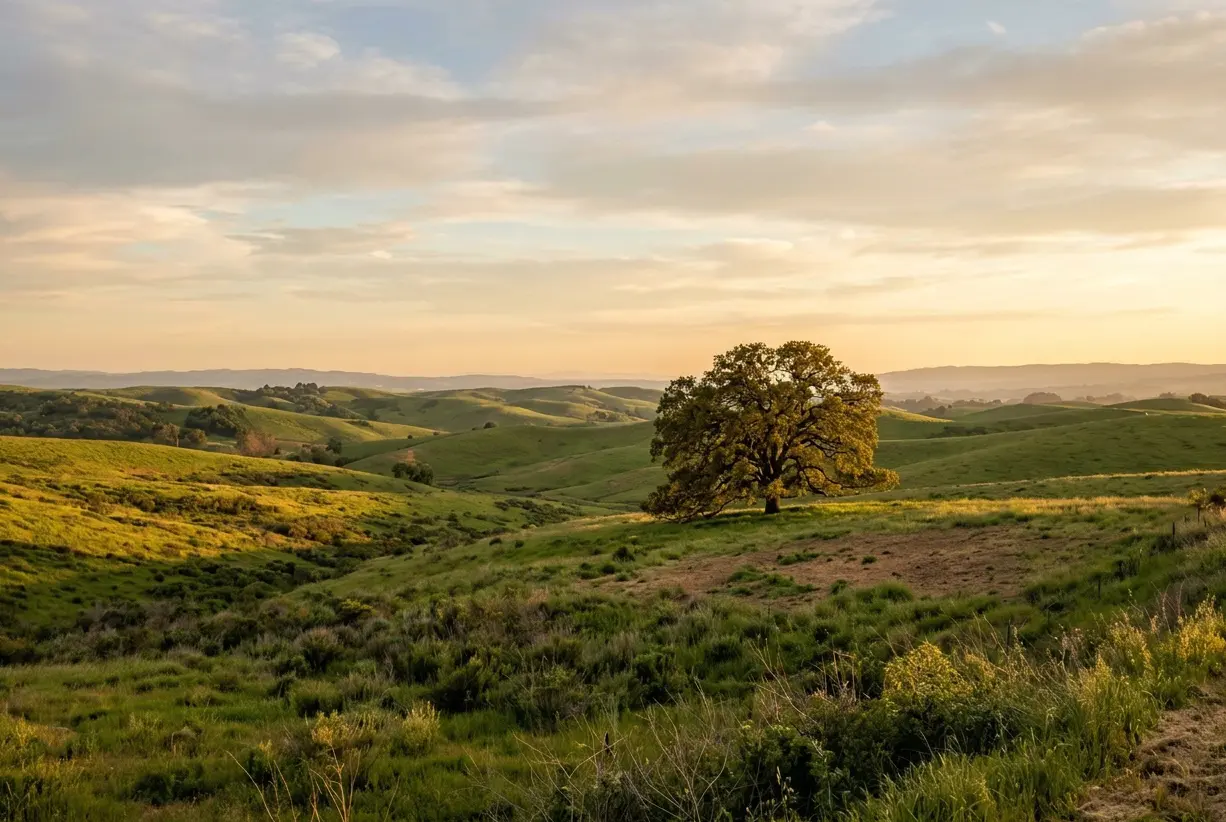
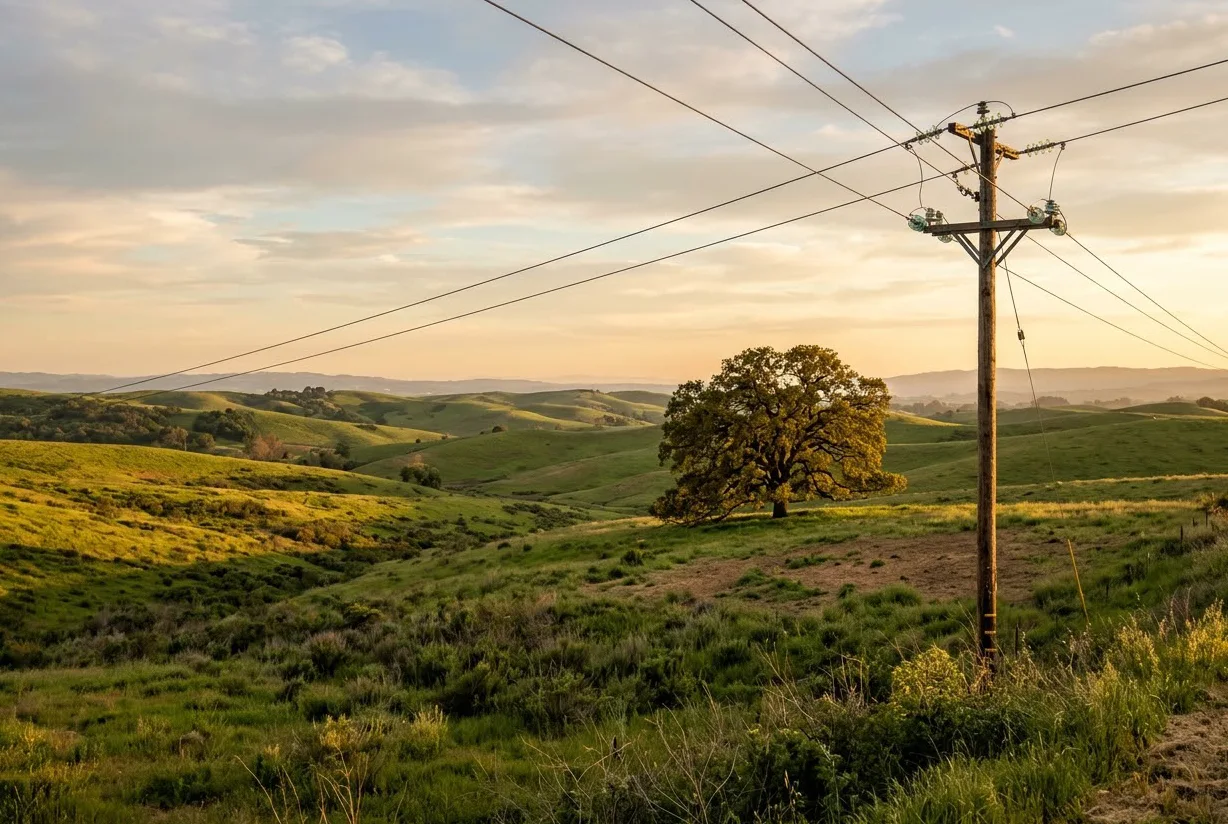
Rolling hills and an oak tree with the power lines removed: AfterRolling hills and an oak tree with the power lines removed: BeforeBeforeAfter

Remove an object: the black power lines and the wooden utility pole

Instruction: Remove the black power lines and the wooden utility pole from this photo and fill the area with what would naturally be behind it, matching the surrounding texture, light and perspective. Leave no trace or blur. Keep every person, face, body, pose, object and the composition exactly as they are unless this instruction changes them. Add no text, borders or watermarks.

01

How the model knows what to remove

The model reads your words and the picture together, so "the cone" is enough when there is one cone, and "the cone nearest the door" helps when there are several. Colour, position (left, foreground, behind the tree) and size are the most useful words. Naming several things in one instruction works, but one or two per pass gives cleaner fills.

02

What the fill looks like

The removed area is repainted to continue what was around it: brick lines carry on, grass and sky fill in, a shadow the object cast goes with it. On regular textures this is usually seamless. Where the object hid something unique, such as part of a face or a sign, the model has to invent what was behind it, so check those areas closely.

03

Limits worth knowing

Objects that cover a large share of the frame leave the model a lot to invent, and the result can look soft. Reflections of the object in windows or water are sometimes missed; name them separately. The editor will not remove watermarks or logos you do not own.

Credits per edit

The editor shows the exact cost before you run anything. Plans and credit packs

ModelGood for1K2K4K
Nano Banana 2.1Everyday edits: fast, low cost, good at clean-ups111624
Nano Banana ProBusy scenes and restorations, 4K only——63
GPT Image 2Strong colour changes and a second opinion on hard edits162742
Recraft Remove BackgroundCut-outs only; keeps the original pixels6——

Questions

Can I remove a person from a photo?

Yes. Tap Remove people, and say who should stay if you want to keep someone. Only edit photos you have the right to edit.

Do I need to draw a mask?

No. You describe the object in words and the model finds it. Be specific when two similar things are in the photo.

Can it remove watermarks or logos?

No. Removing watermarks, logos or credits from images you do not own is refused, because it would strip someone else's rights notice.

Which model should I use?

Nano Banana 2.1 handles most clean-ups quickly and cheaply. For crowded scenes or large removals, Nano Banana Pro usually fills more convincingly.

What if something is left behind?

Keep editing the result and name the leftover, such as "the shadow where the cone was". Each pass is a new edit with its own credit price.